Connections
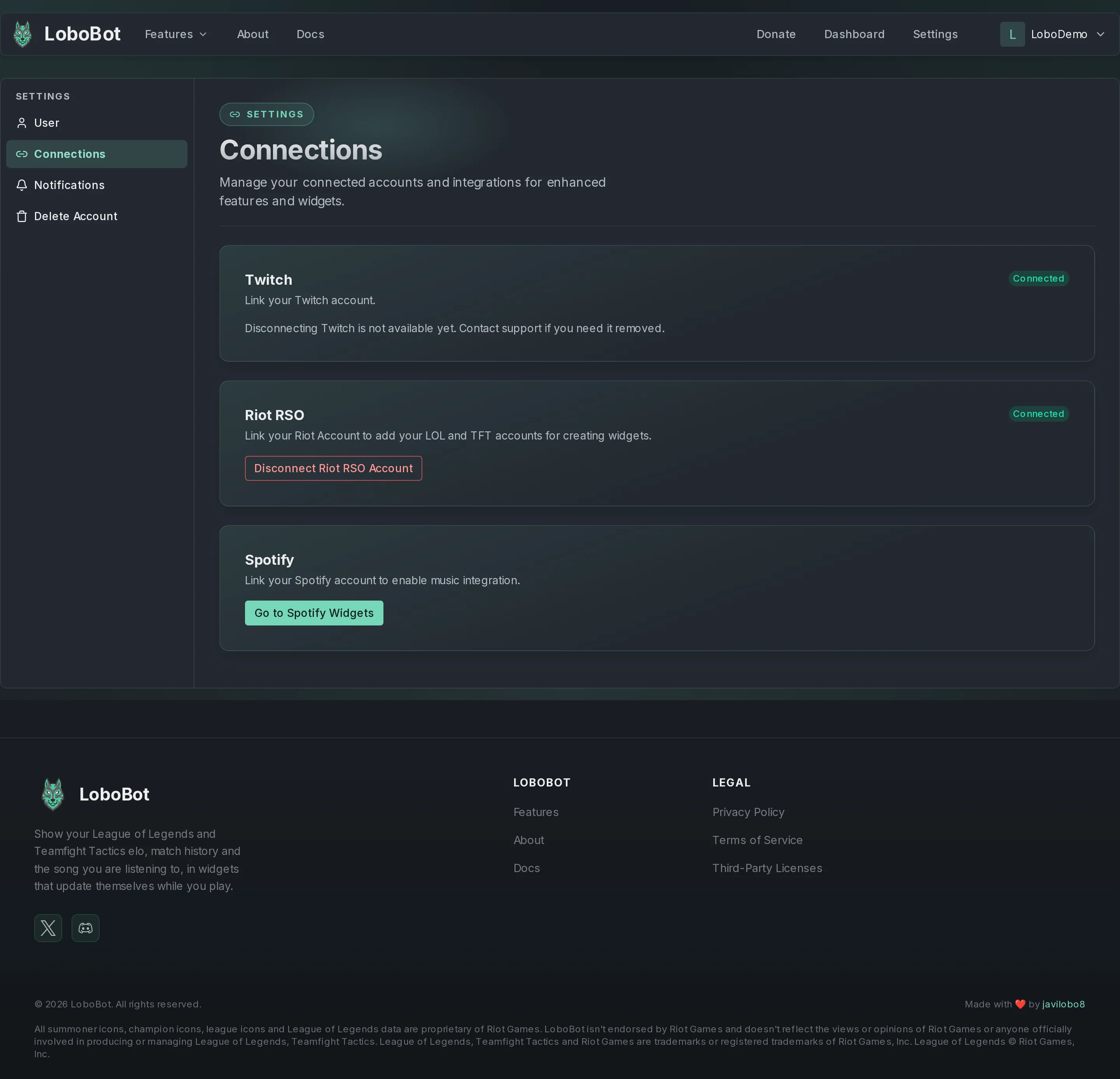
The Connections page lists the accounts you can link to LoboBot: Riot Sign On (Riot RSO), Twitch and Spotify. To open it, click Settings in the header, then Connections. A linked Riot or Twitch account shows a Connected badge.
Riot Sign On
Riot Sign On adds the League of Legends and Teamfight Tactics accounts of your Riot account, already verified. See Link with Riot Sign On for what it adds.
Link it
- Under Riot RSO, click Link Riot RSO Account.
- Sign in on the Riot page and allow LoboBot to access your account.
- LoboBot takes you back to Connections, where Riot RSO shows Connected.
Your accounts appear under Riot Accounts in the dashboard.
Disconnect it
- Under Riot RSO, click Disconnect Riot RSO Account.
- In Disconnect your Riot Account?, click Disconnect Riot Account.
Your League of Legends and Teamfight Tactics accounts stay in LoboBot, and so do their boxes and URLs. They only lose their verified badge, and the Connect with Riot Sign On panel comes back on Riot Accounts.
The dialog says more than happens
The confirmation dialog says your accounts will be permanently deleted. They are not: disconnecting only removes the verified badge. To remove an account, delete it on Riot Accounts: see Delete an account.
You can also remove LoboBot from the apps connected to your Riot account, on the Riot account page. That does not change anything in LoboBot: use Disconnect Riot RSO Account as well.
Twitch
- Under Twitch, click Link Twitch Account.
- Sign in on the Twitch page and allow LoboBot to access your account.
- LoboBot takes you back to Connections, where Twitch shows Connected.
Signing up or logging in with Twitch does not link it here: the two are separate.
You cannot disconnect Twitch from the web: once it is linked, the section says Disconnecting Twitch is not available yet. Contact support if you need it removed. To remove it, contact support.
Spotify
You connect Spotify from the Spotify Box page, not from here. The Spotify section only has a Go to Spotify Widgets button, which takes you there. See Connect Spotify.
The Spotify section never shows Connected, even when your Spotify account is connected. To check, open Spotify Box: the name of the connected Spotify account shows next to Disconnect.
If linking fails
You have 10 minutes to finish signing in on the other site. If it takes longer, or the attempt is rejected, LoboBot brings you back to Connections with a red notice, such as Could not connect your Twitch account. That login attempt expired, start again. Click Reconnect in the notice to try again.
If you cancel on the Riot page, LoboBot shows Could not connect your Riot account instead. Click Back to connections and try again.
Next steps
- Link your Riot accounts: add accounts by Riot ID, regions and limits.
- Spotify Box: connect Spotify and set up your box.
- Account settings: change your username, email or password.