
Add a widget to OBS or Streamlabs
Every LoboBot widget is a web page with a transparent background. To show it on stream, you add its URL to OBS Studio or Streamlabs Desktop as a browser source.
What you need: a widget created in LoboBot (see Choose a widget) and OBS Studio or Streamlabs Desktop.
Copy the widget URL
- In the dashboard, open the widget's page: LOL Boxes, TFT Boxes or Spotify Box.
- For a League of Legends or Teamfight Tactics box, select the box in the list.
- Under Browser source URL, click Copy. LoboBot confirms with Link copied to clipboard!.
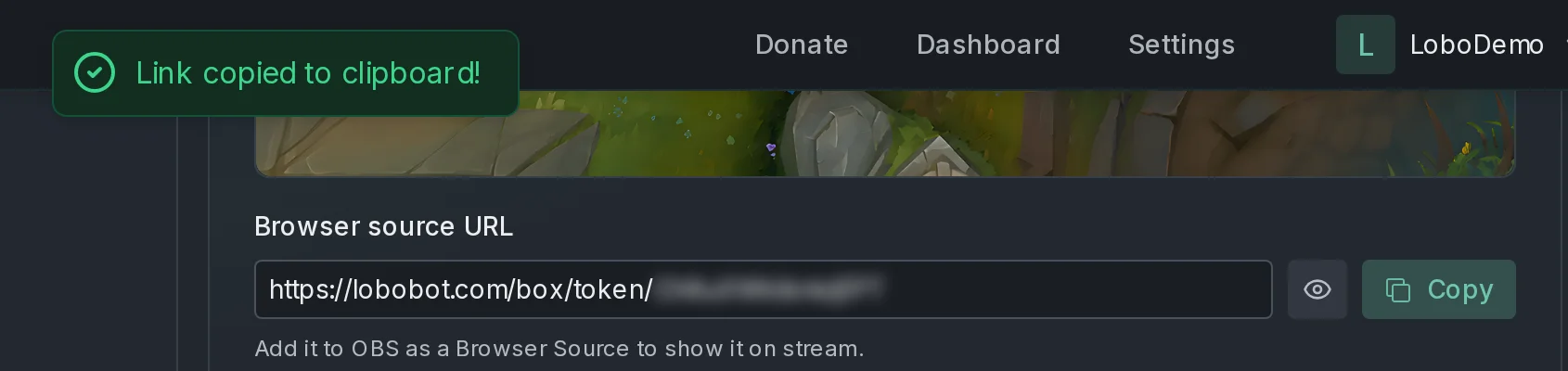
The end of the URL is blurred so it does not show on screen. Click the eye button (Show) to see it.
Keep the URL private
Anyone with the URL can load your widget. If it leaks, delete the box and create a new one: deleting a box revokes its link. For the Spotify Box, click Disconnect and connect Spotify again; you get a new link, with the default styles.
Editing a box keeps its URL, so there is nothing to change in OBS afterwards.
Add it in OBS Studio
- In the Sources dock, click +.
- Choose Browser.
- Give the source a name, such as "LoboBot rank", and click OK.
- Paste the widget URL into URL.
- Set Width and Height. See Pick a size.
- Click OK.
- Drag the source into place on the canvas.
Pick a size
LoboBot does not give its widgets a fixed size, so the source's Width and Height are up to you. Use the preview on the widget's page in the dashboard as a guide:
- The widget sits in the middle of the source. The League of Legends box v8 (Integrated on top) sits at the top, centered.
- The background is transparent, so spare room never shows on stream.
- If part of the widget is cut off, make the source wider or taller.
Add it in Streamlabs Desktop
Streamlabs Desktop follows the same steps. In Sources, click + and choose Browser Source. Then paste the widget URL and set the width and height in the source's settings.
Boxes v6 and v7: keep the source running
On League of Legends boxes v6 (With session) and v7 (Customizable), the dashboard asks you to turn off two browser source options in OBS:
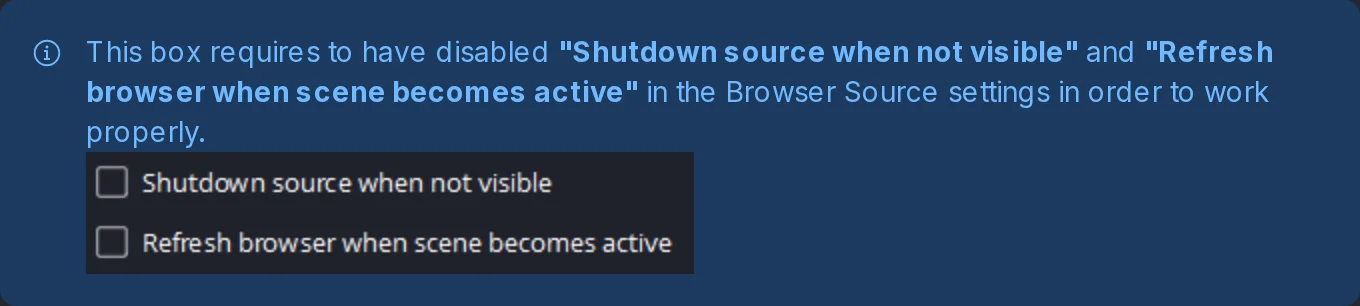
- In Sources, double-click the box's source to open its properties.
- Uncheck Shutdown source when not visible.
- Uncheck Refresh browser when scene becomes active.
- Click OK.
Both options reload the widget: the first unloads it while the source is hidden, and the second reloads it every time you switch to its scene. Here is what a reload does to each box:
| Box | What a reload does |
|---|---|
| v6 | Resets SESSION W/L and SESSION KDA to zero. The session counts the games that start after the source loads. |
| v7 | Nothing, by default. The box shows TODAY W/L and TODAY KDA, counted from the games you played today, so they survive a reload. If you add ?todayGamesEnabled=false to the end of the URL, the box shows SESSION W/L instead and resets like v6. |
Streamlabs Desktop has the same two options in the source's settings.
If the widget does not show
| What you see | Why | Fix |
|---|---|---|
| Box not found | The box was deleted, so its link no longer works. | Copy the URL of a current box and paste it into the source's URL. |
| Reconnect your Spotify account on lobobot.com | LoboBot lost access to your Spotify account, and the widget stopped asking for songs. | Open Spotify Box in the dashboard and click Reconnect Spotify account; the URL stays the same. Do not use Disconnect: it deletes the box and gives you a new URL. Then reload the source: open its properties in OBS and click Refresh cache of current page. |
| Part of the widget is cut off | The source is smaller than the widget. | Increase the source's Width or Height. |
Next steps
- League of Legends boxes: create, edit and delete boxes.
- Choose a widget: compare the widgets and how often each one refreshes.
- Troubleshooting & FAQ: more fixes.