Account settings
Your account settings hold your username, your email, your password and the emails you get from LoboBot. To open them, click Settings in the header.
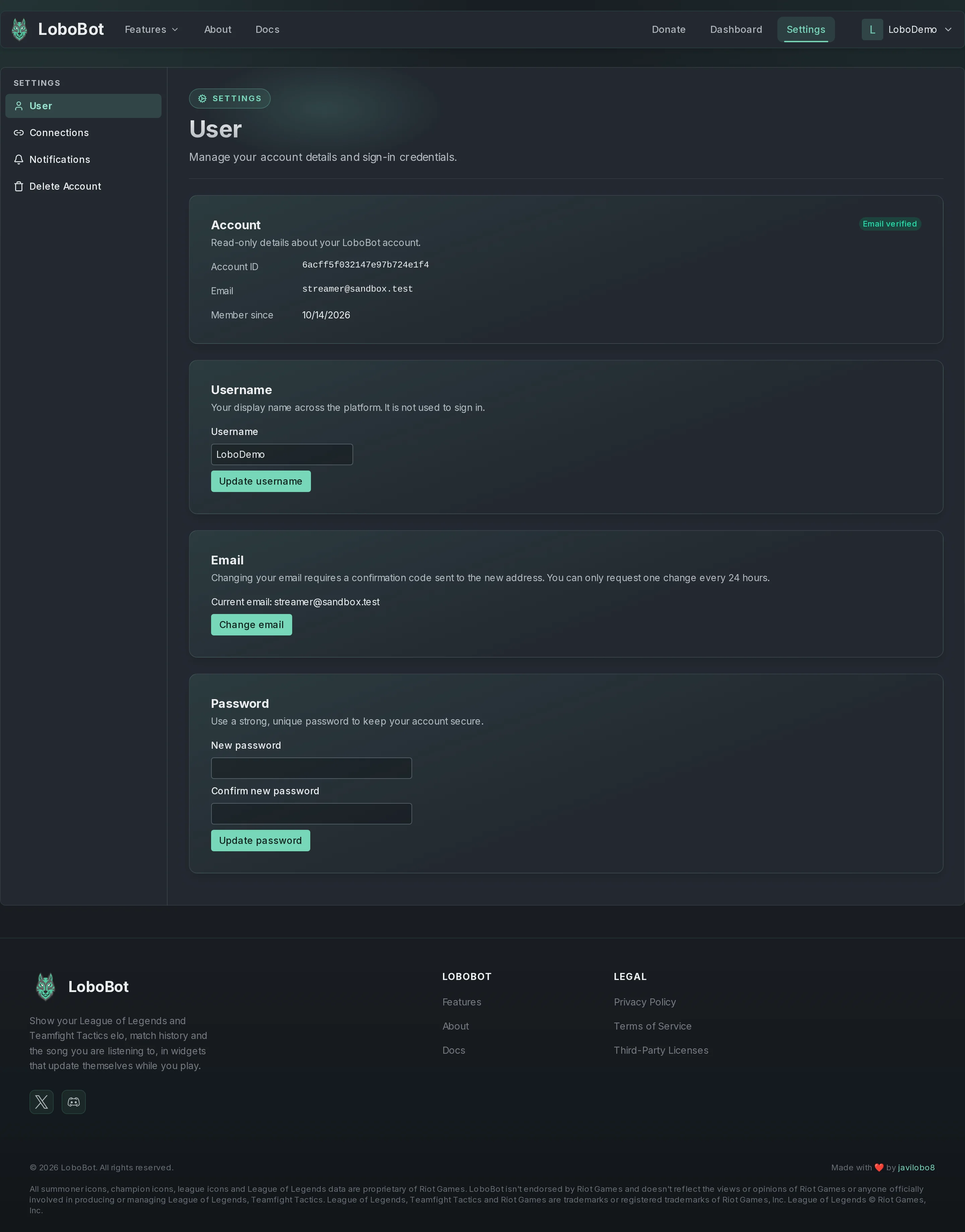
The settings sidebar has four pages: User, Connections, Notifications and Delete Account. This page covers User and Notifications; see Connections and Delete your account for the other two.
Your Account ID
The Account section at the top of User shows your Account ID, your Email, the date you joined (Member since) and whether your email is verified (Email verified or Email unverified).
The Account ID identifies your account. Include it when you contact support.
Change your username
Your username is your display name. You log in with your email, not with your username.
- Under Username, type the new name: 3–32 characters, with letters, numbers and underscores.
- Click Update username. LoboBot confirms with Username updated.
Change your email
LoboBot sends a confirmation code to the new address, so you need access to it.
- Under Email, click Change email.
- In New email address, type the new address and click Send code.
- Open the email LoboBot sends to that address and copy the 6-digit code.
- Paste it into Confirmation code and click Confirm email. LoboBot confirms with Email updated successfully.
From then on, you log in with the new email, and it counts as verified.
One code every 24 hours
You can request one code every 24 hours, even if you never use it, and each code expires after 24 hours. Check the address before you click Send code.
If the change does not go through, LoboBot shows one of these messages:
| Message | Why | Fix |
|---|---|---|
| You can only request one email change every 24 hours | You requested a code less than 24 hours ago. | Use the code you already received, or wait until 24 hours have passed. |
| That email is already in use | Another LoboBot account uses that address. | Use another address. |
| The new email is the same as your current one | You typed your current email. | Type the new address. |
| That verification code is not valid | The code does not match the one LoboBot sent. | Copy the code again from the latest email. |
| That verification has expired, request a new one | The code is more than 24 hours old. | Click Change email and request a new code. |
Change your password
- Under Password, type the new password in New password. It follows the same rules as when you sign up: see Form rules.
- Type it again in Confirm new password.
- Click Update password. LoboBot confirms with Password updated.
LoboBot does not ask for your current password, and the new one must be different from it. If you signed up with Google or Twitch, this is how you set a password to log in with your email too.
Choose the emails you get
The Notifications page has one switch, Product updates: news about LoboBot, new features and improvements. It is on until you turn it off, and LoboBot confirms each change.
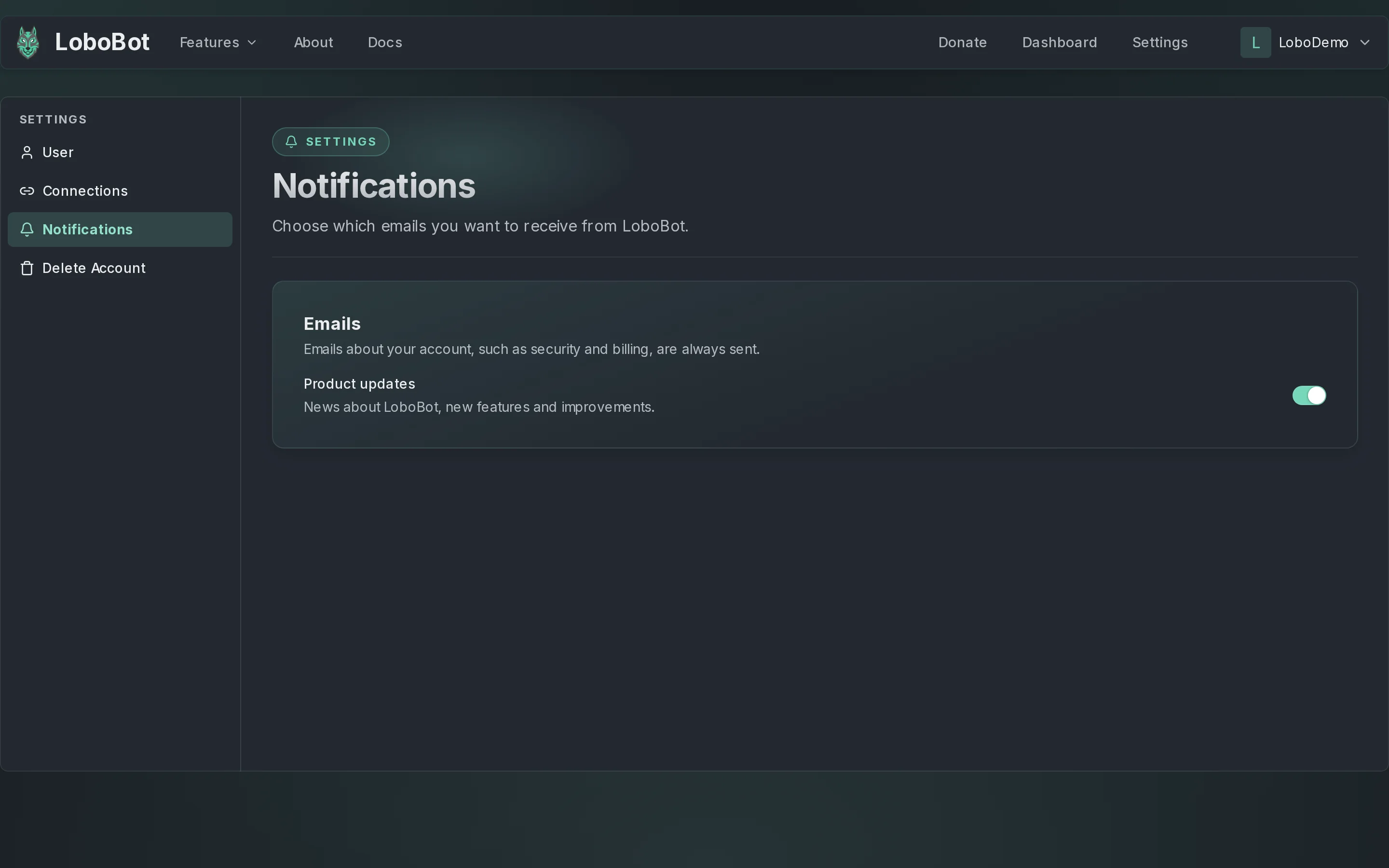
- Emails about your account, such as password reset links and email change codes, are always sent. The switch does not affect them.
- Every product update email ends with an Unsubscribe link and a Manage preferences link to this page.
- Product updates, like every LoboBot notification, only go to a verified email.
Next steps
- Connections: link or disconnect Riot Sign On and Twitch.
- Contact support: what to include with your Account ID.
- Delete your account: what gets deleted, and how.