
League of Legends boxes
A League of Legends box shows your rank, LP and win rate on stream. Depending on its version, it can also show your latest matches, today's or this session's wins and KDA, or your champion mastery. You create it in the dashboard and add its URL to OBS as a browser source.
Here is a v8 box (Integrated on top) as it looks on stream:

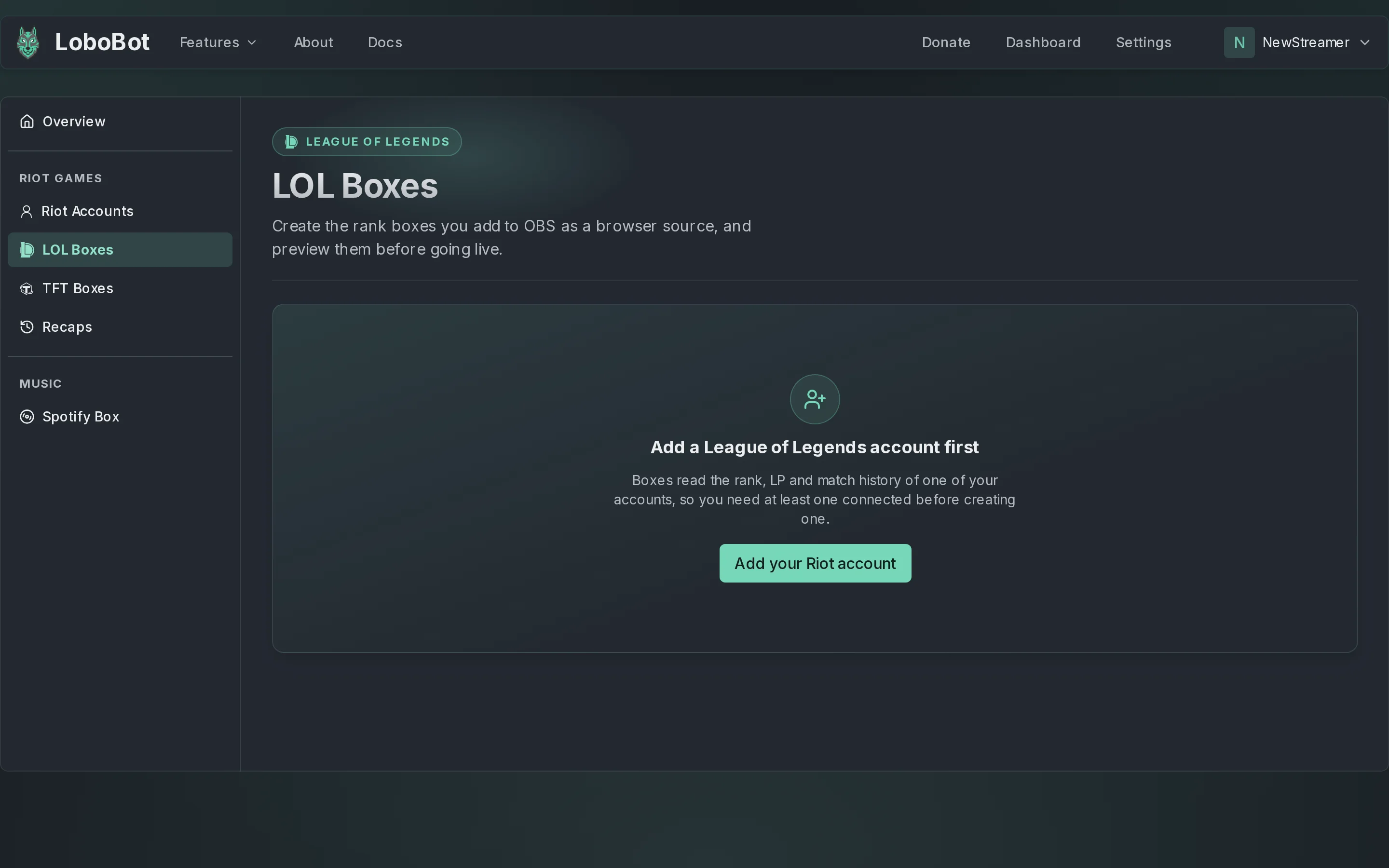
What you need: a League of Legends account linked in Riot Accounts (see Link your Riot accounts). Until you link one, LOL Boxes asks you to add it first.
Create a box
In the dashboard, open LOL Boxes and click New box.
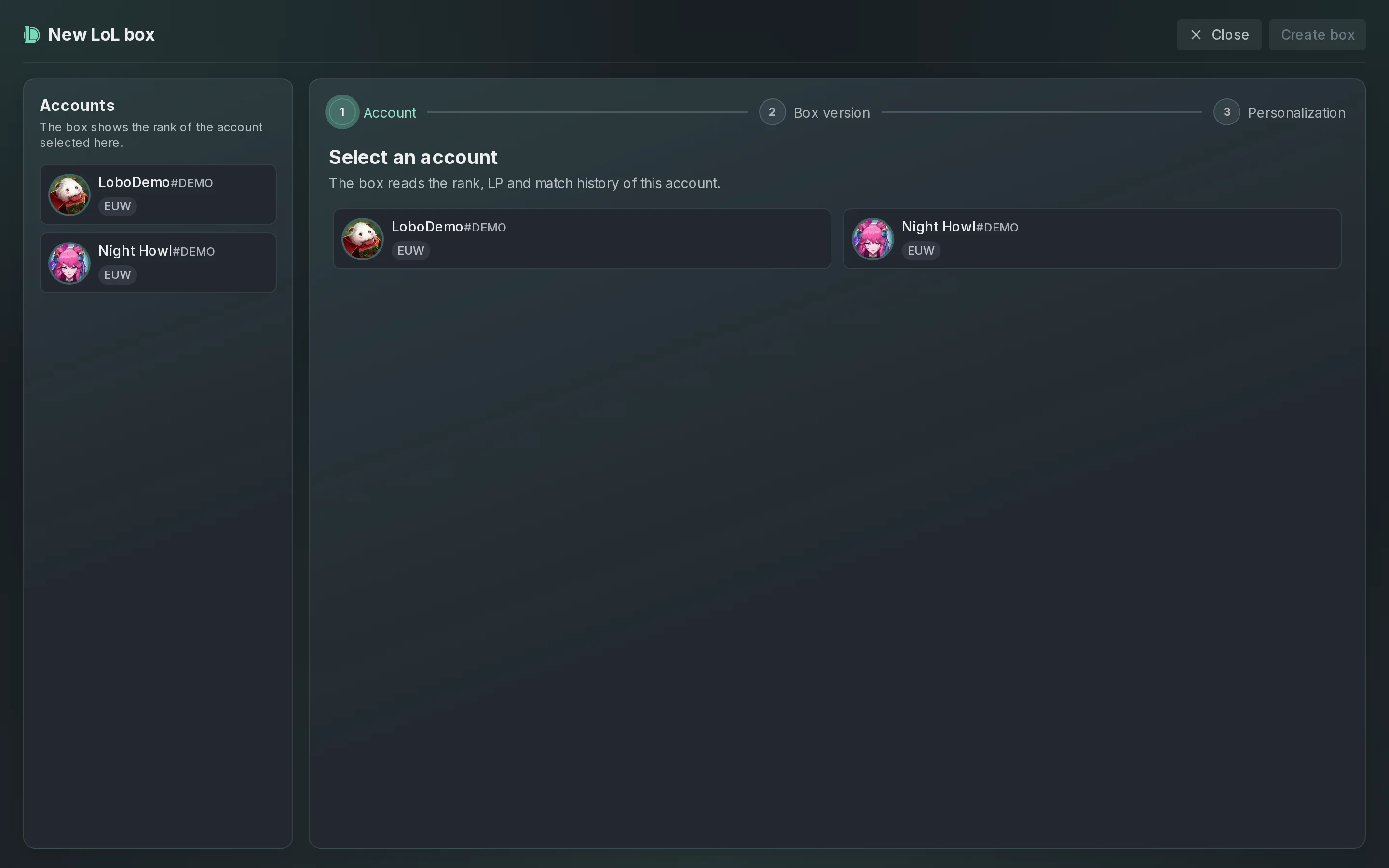
On Account, click the account the box reads from.
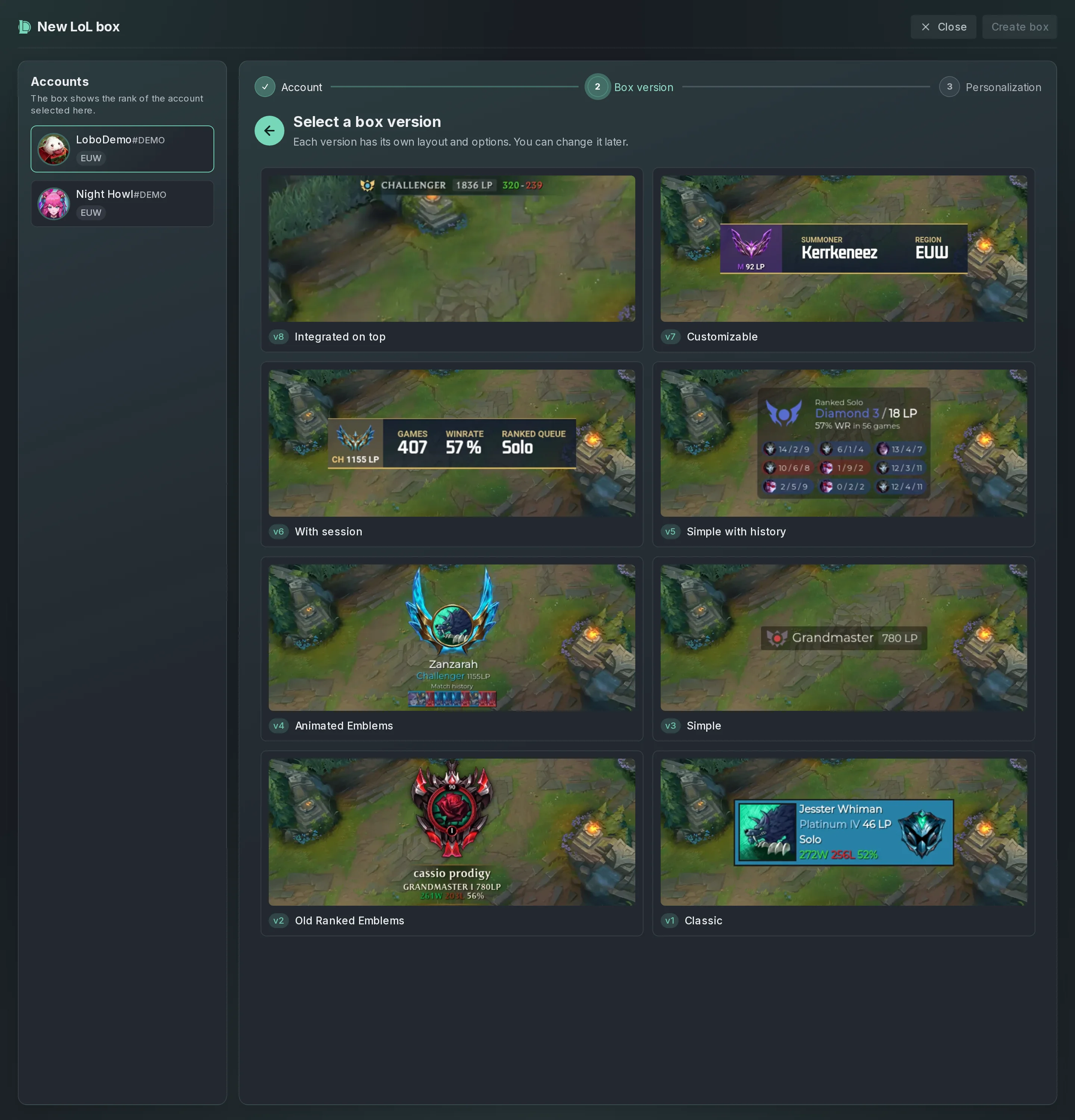
On Box version, click one of the eight designs. Not sure which? See LoL box versions.
On Personalization, under Queue Type, pick Solo Queue or Flex Queue.
Adjust the options, or click one of the Presets. The preview updates as you go.
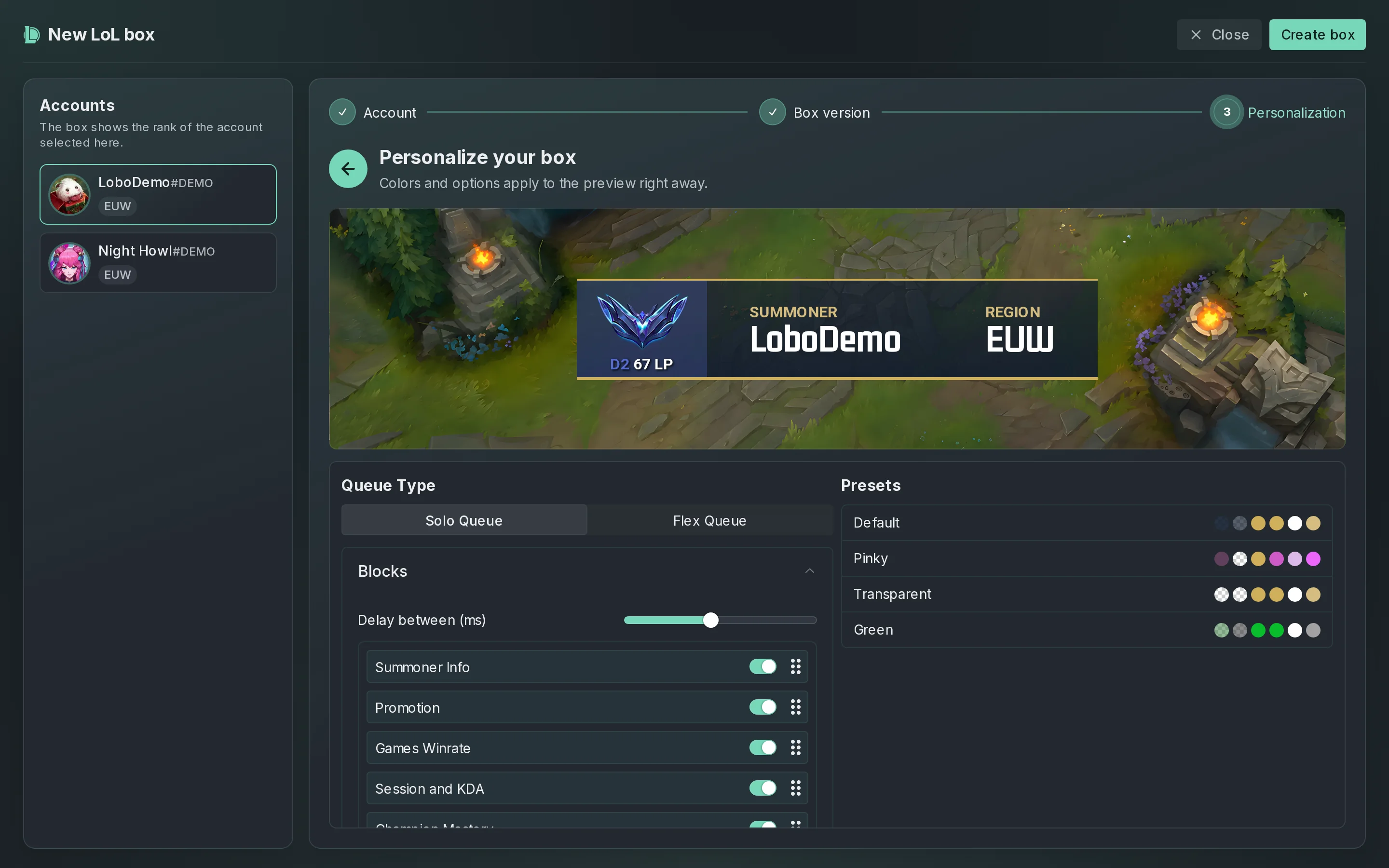
Click Create box. Your box appears under Your boxes.
To go back a step, click it in the steps bar at the top. The Accounts list on the left switches the account at any time.
Several boxes for one account
You can create several boxes for the same account, for example one for Solo Queue and one for Flex Queue, and put each in its own scene.
Copy the box URL
- Under Your boxes, click the box.
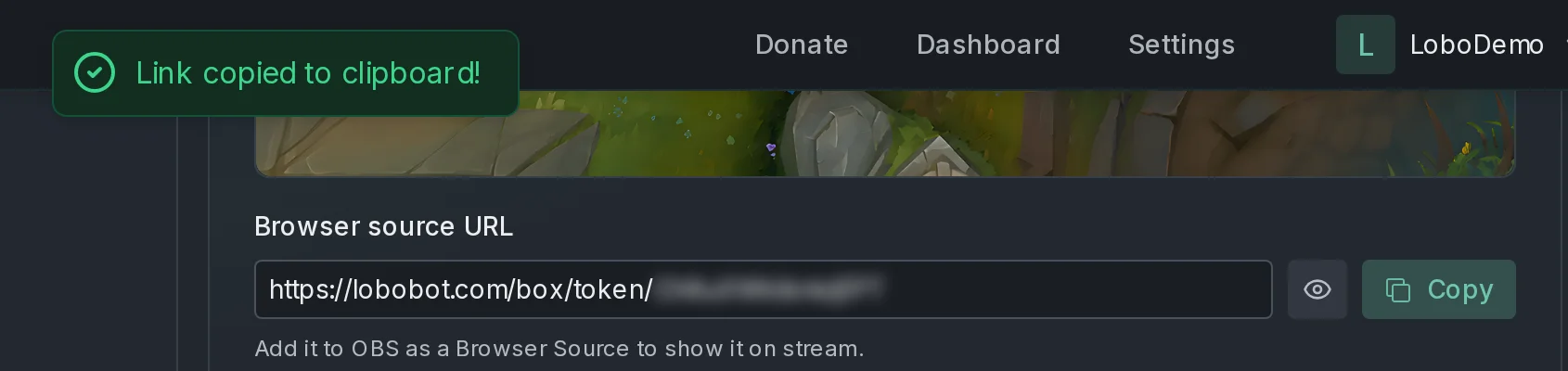
- Under Browser source URL, click Copy. LoboBot confirms with Link copied to clipboard!.
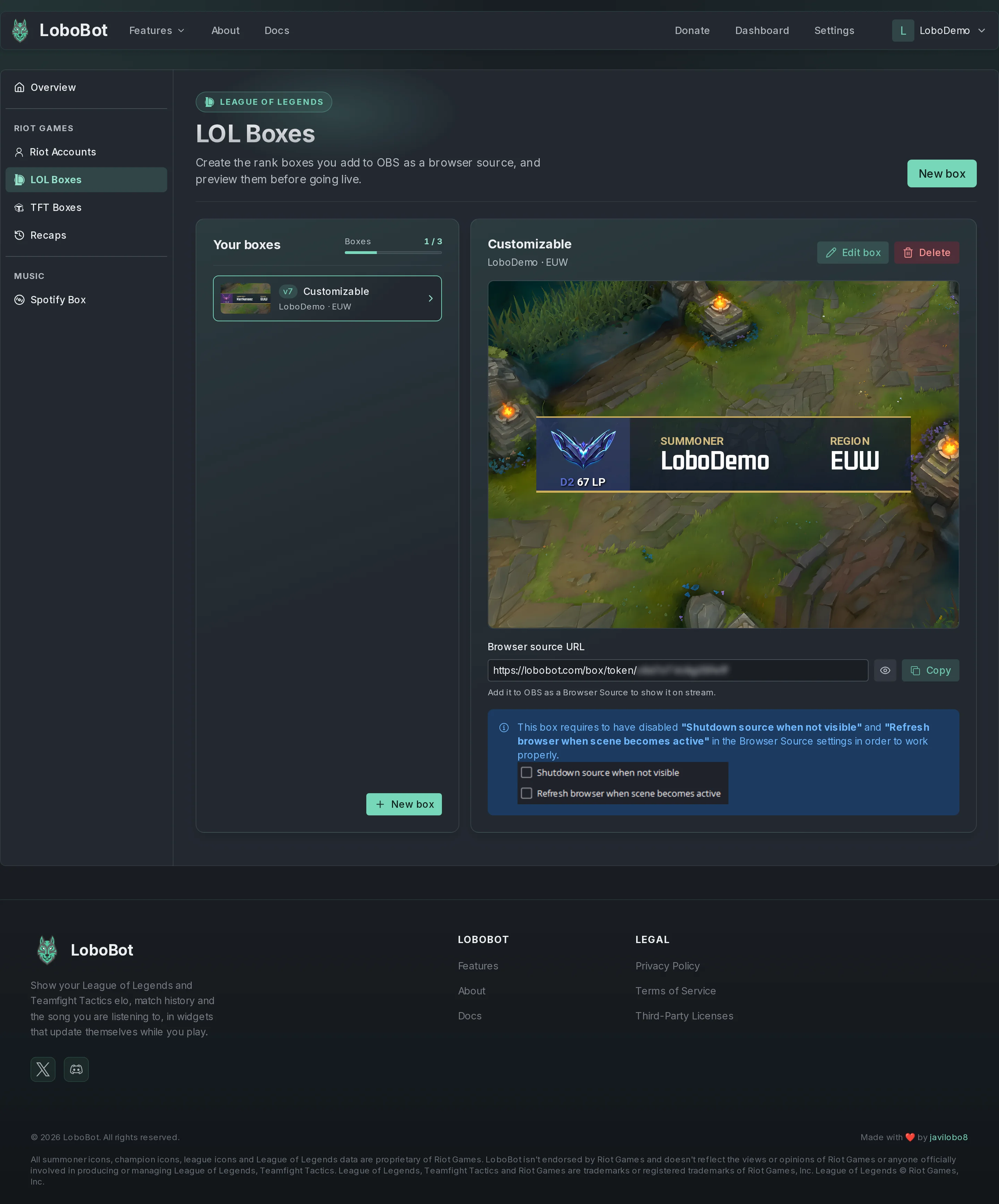
The URL looks like https://lobobot.com/box/token/…. Its end is blurred so it does not show on stream; click the eye button (Show) to see it, and again (Hide) to blur it.
Keep the URL private
Anyone with the URL can show your box. If it leaks, delete the box and create a new one: deleting a box revokes its URL.
Then paste the URL into OBS: see Add a widget to OBS or Streamlabs.
Boxes v6 and v7
For a v6 (With session) or v7 (Customizable) box, the page shows this notice under the URL:
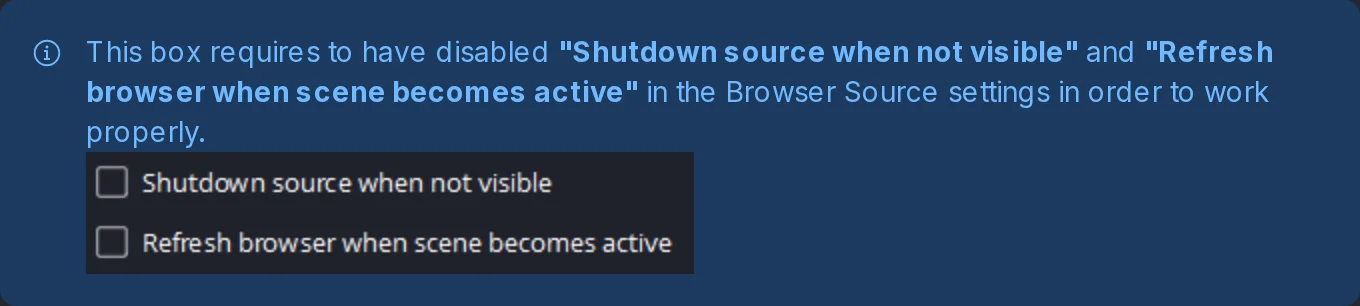
Turn both options off in the OBS source so OBS does not reload the box. See Boxes v6 and v7: keep the source running for the steps and what a reload does to each box.
Edit a box
- Under Your boxes, click the box.
- Click Edit box. The editor opens on Personalization.
- Change the options, the queue, the version or the account.
- Click Save changes. LoboBot confirms with Box updated successfully!.
The URL stays the same, so there is nothing to change in OBS. The source picks up your changes the next time it refreshes, within 10 minutes.
Delete a box
- Under Your boxes, click the box.
- Click Delete.
- Click Delete to confirm.
The URL stops working
Deleting a box revokes its URL: the OBS source shows Box not found from then on. This cannot be undone.
Limits and the LoboBot banner
- You can have up to 3 League of Legends boxes. The Boxes meter under Your boxes shows how many you have; when it is full, delete a box to create a new one.
- From time to time, a short LoboBot banner can slide over your box.
If something goes wrong
| What you see | Why | Fix |
|---|---|---|
| You reached the maximum number of boxes when you click Create box | You already have 3 boxes. | Delete a box you no longer use. |
| Box not found in OBS | The box, or the account it reads from, was deleted. | Copy the URL of a current box and paste it into the source's URL. |
| Could not load box in OBS | LoboBot could not get the box's data. | The source tries again every 10 minutes. If it keeps happening, contact support. |
| Your rank or last game has not changed yet | LoboBot refreshes Riot data on a schedule. | See How often data updates. |
Next steps
- LoL box versions: what each of the eight designs shows and its options.
- Add a widget to OBS or Streamlabs: paste the URL and size the source.
- How often data updates: when a new rank or game reaches your box.