Spotify Box
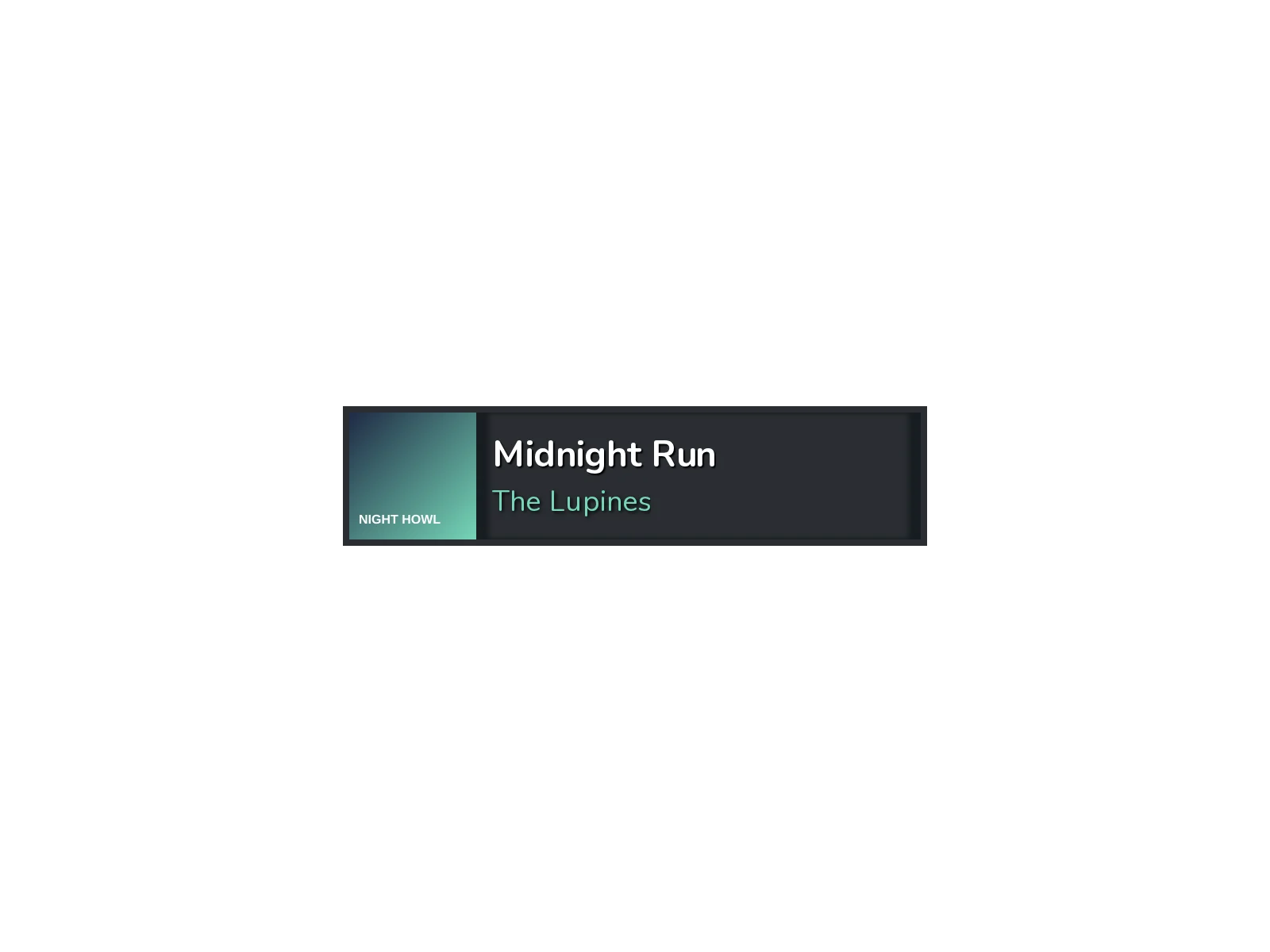
The Spotify Box shows the song you are playing on Spotify: the album cover, the title and the artist. You add its URL to OBS as a browser source, and it follows your music by itself. It also gives your chat bot !song and !playlist commands.
What you need: a LoboBot account (see Create an account) and the Spotify account you listen on.
Connect Spotify
In the dashboard, open Spotify Box.
Click Connect Spotify account.
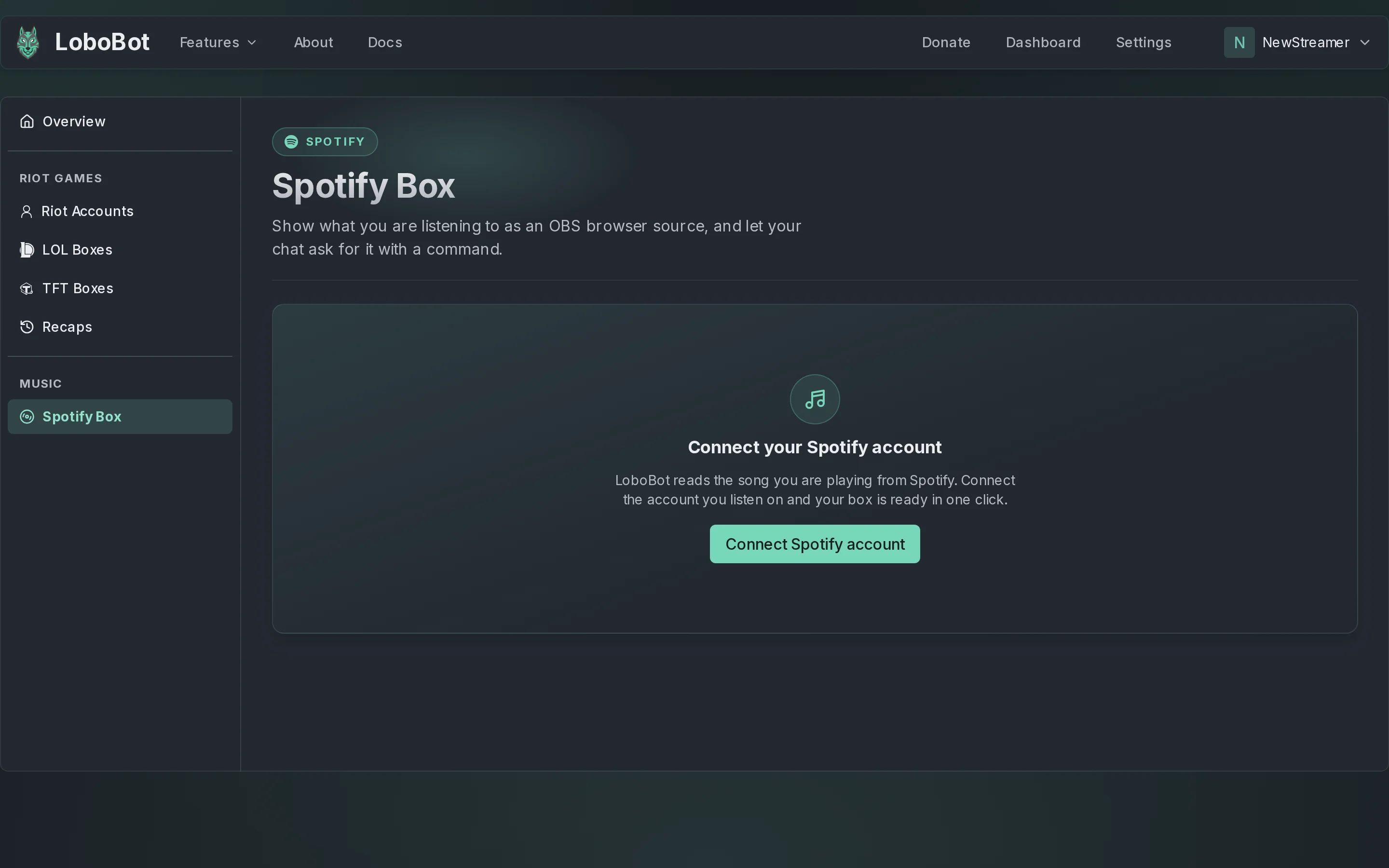
On the Spotify page, sign in to the account you listen on and accept. Spotify asks to let LoboBot read your email address, the song you are playing and the state of your player.
LoboBot shows Connecting Spotify account... for a moment. Stay on the page: it takes you back to Spotify Box, with your box ready.
Each LoboBot account has one Spotify Box. The name of the connected Spotify account shows at the top of the page, next to Disconnect.
Copy the box URL
Under Browser source URL, click Copy. The URL looks like https://lobobot.com/box/spotify/…. Then paste it into OBS: see Add a widget to OBS or Streamlabs.
Keep the URL private: anyone who has it can show your box. If it leaks, see Disconnect Spotify to get a new one.
Change how it looks
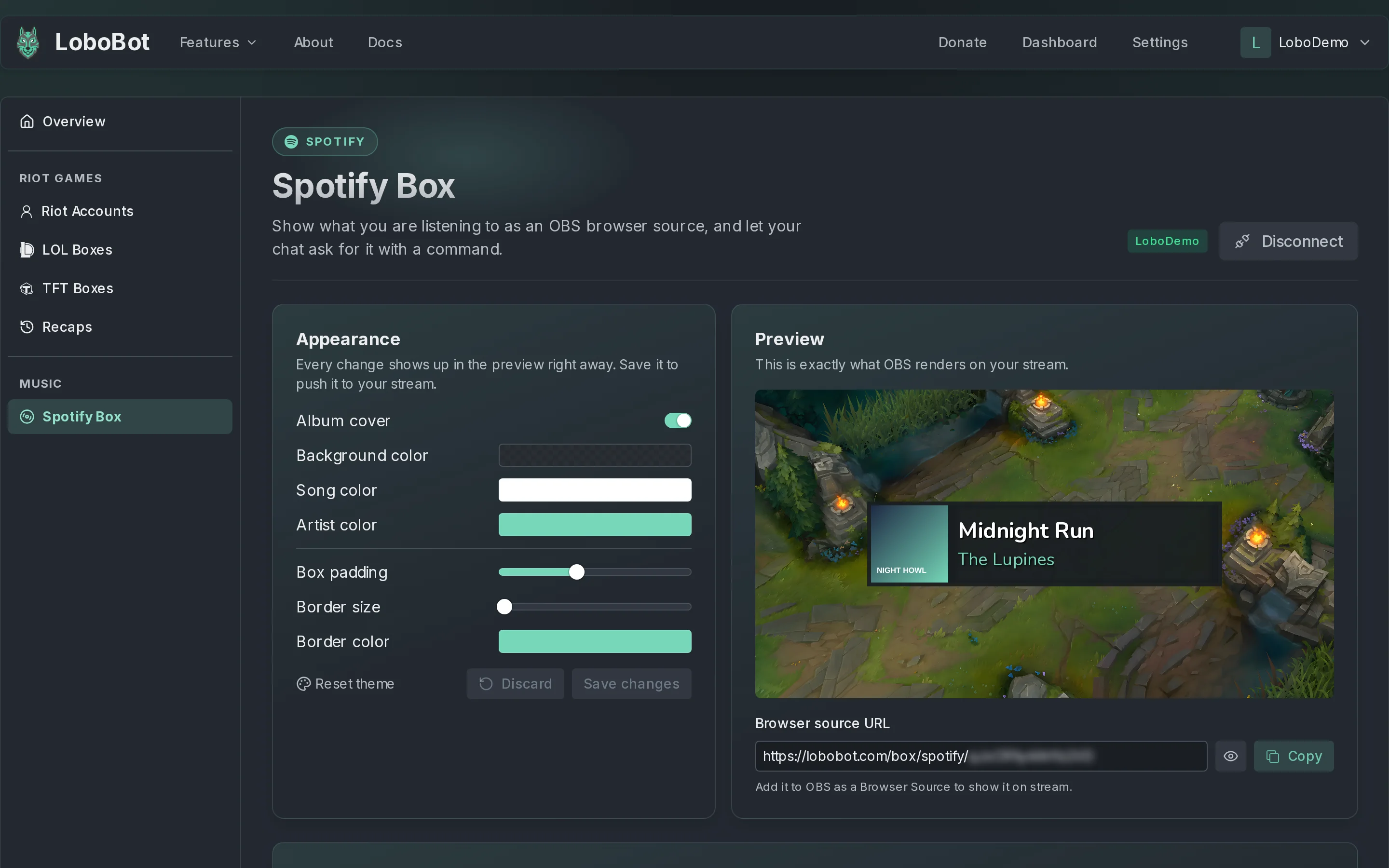
- In the Appearance panel, change the options. The Preview next to it updates as you go and shows Unsaved changes.
- Click Save changes. LoboBot confirms with Options saved successfully!.
The box in OBS picks up your saved changes within 5 minutes, without reloading the source. The URL stays the same.
| Option | What it does |
|---|---|
| Album cover | Shows or hides the album cover. |
| Background color, Song color, Artist color | The box's background and the colors of the title and the artist. |
| Box padding | The space around the content, from 0 to 10. |
| Border size | The thickness of the border, from 0 to 5. |
| Border color | The color of the border. |
The buttons under the options:
- Discard throws away the changes you have not saved.
- Reset theme puts back the default colors and sizes. Click Save changes afterwards to keep them.
What the box shows
- The song you are playing. The box asks Spotify every 5 seconds. A title or artist too long for the box scrolls.
- The last song, when Spotify reports nothing. If you stop playing, or play a podcast, the box keeps the last song it showed.
- A Loading badge, until the first song. If nothing is playing when OBS loads the source, the box shows a small Loading badge until you play a song.
Chat commands
The Chat commands panel gives your chat bot two commands, with a version for StreamElements, StreamLabs and Nightbot:
| Command | What your bot answers |
|---|---|
!song | The song you are playing, as "Title - Artist". When nothing is playing, the last song. |
!playlist | A Spotify link to the playlist, album or song you are playing, or Error: nothing playing now. |
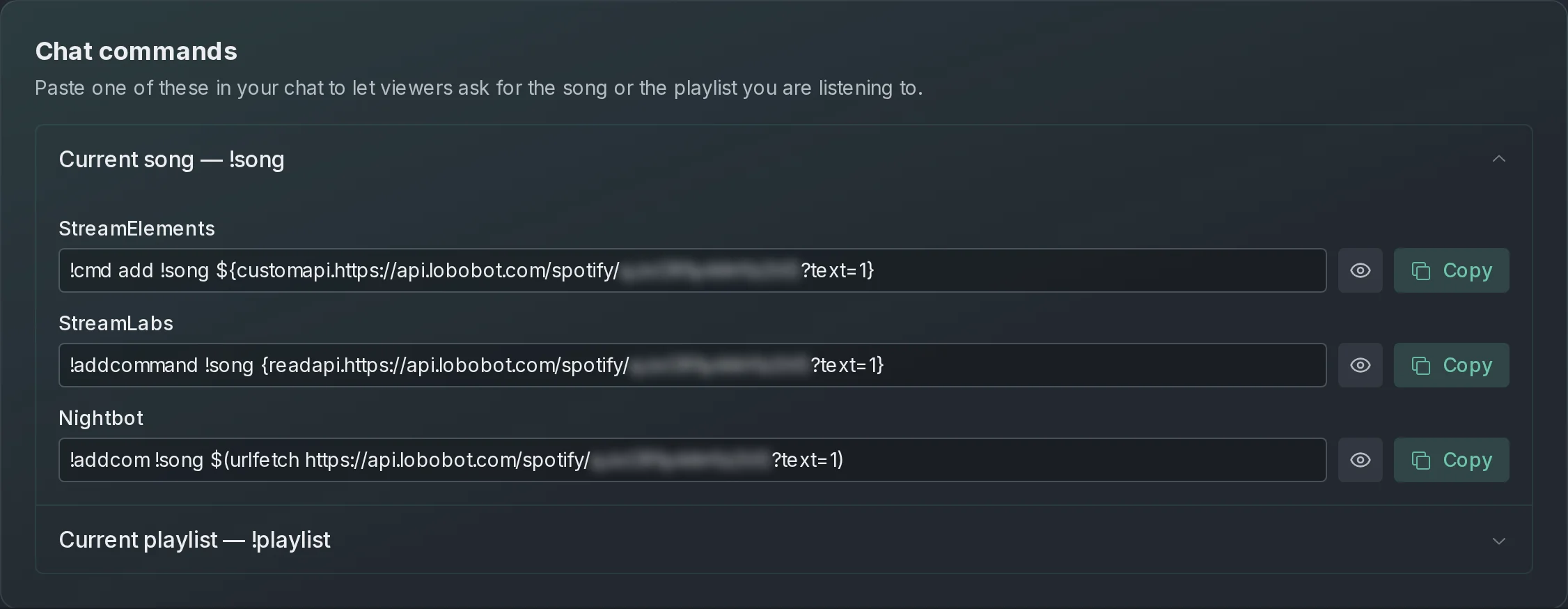
Add a command to your bot
Add each command from your bot's dashboard, where your viewers cannot see it.
- In Chat commands, open Current song — !song or Current playlist — !playlist.
- Next to your bot, click Copy. LoboBot confirms with Command copied to clipboard!.
- In your bot's dashboard, create a custom command named
!songor!playlist. - Paste what you copied as the command's response.
- Delete the start of the response, so only the part in the table below remains.
- Save the command.
| Bot in LoboBot | Keep this part as the response |
|---|---|
| StreamElements | ${customapi.<link>} |
| StreamLabs | {readapi.<link>} |
| Nightbot | $(urlfetch <link>) |
<link> is your private link, already filled in by LoboBot. It starts with https://api.lobobot.com/spotify/: a different address from your box's URL on lobobot.com, but with the same private token.
Never type these commands in your stream chat
The panel suggests pasting a command in your chat, but every command contains your private link, with the same token as your box's URL. Anyone who sees it can show your box and read what you are playing. If you already sent one in chat, delete the message right away. If the link may have leaked, disconnect Spotify and connect it again to get a new token: the old URL and commands stop working. Reconnect Spotify account keeps the old token, so it does not help here.
Reconnect Spotify
If Spotify stops letting LoboBot read your account, the box stops updating. The Spotify Box page says Spotify revoked your connection, so the box stopped updating and the box in OBS shows Reconnect your Spotify account on lobobot.com.
- On the Spotify Box page, click Reconnect Spotify account.
- Sign in on the Spotify page and accept.
- In OBS, open the source's properties and click Refresh cache of current page.
Reconnecting keeps your box: the same URL, the same chat commands and the same styles.
Disconnect Spotify
- At the top of the Spotify Box page, click Disconnect.
- In Disconnect Spotify, click Disconnect to confirm.
Disconnecting deletes your box
Your box, its URL and its styles are gone: the OBS source shows Reconnect your Spotify account on lobobot.com and your chat commands stop working. If you connect again, you get a new box with a new URL and the default styles, so update the source in OBS and add the commands again.
Spotify's own limits
The box reads your music through Spotify. Where Spotify restricts its service, the box cannot show your songs.
Next steps
- Add a widget to OBS or Streamlabs: paste the URL and size the source.
- How often data updates: how often the box and
!songask Spotify. - Troubleshooting & FAQ: when the song does not change.