Create an account
A LoboBot account is free, and you can set up your first widget in a couple of minutes. You can sign up with Google, Twitch or an email address.
What you need: a Google or Twitch account, or an email address you can check now.
To start, go to lobobot.com and click Register, or open lobobot.com/auth/register.
Sign up with Google or Twitch
- Click Sign up with Google or Sign up with Twitch.
- Allow LoboBot to sign you in on the Google or Twitch page.
- You land on your dashboard, logged in.
Signing up this way means you accept the Terms of Service and the Privacy Policy.
LoboBot matches your account by the email address of your Google or Twitch account:
- If a LoboBot account already uses that email, you are logged into it. Google, Twitch and email are three ways into the same account.
- If not, LoboBot creates a new account with the email already verified. Your username starts as the part of the email before the
@; you can change it in Account settings.
Log in with a password too
An account created with Google or Twitch has no password you know. To log in with your email as well, set one in Settings, under Password, or use Forgot password? on the login page.
Sign up with email
Click Sign up with email.
Fill in the form, following the form rules:
- Username
- Password
- Confirm password
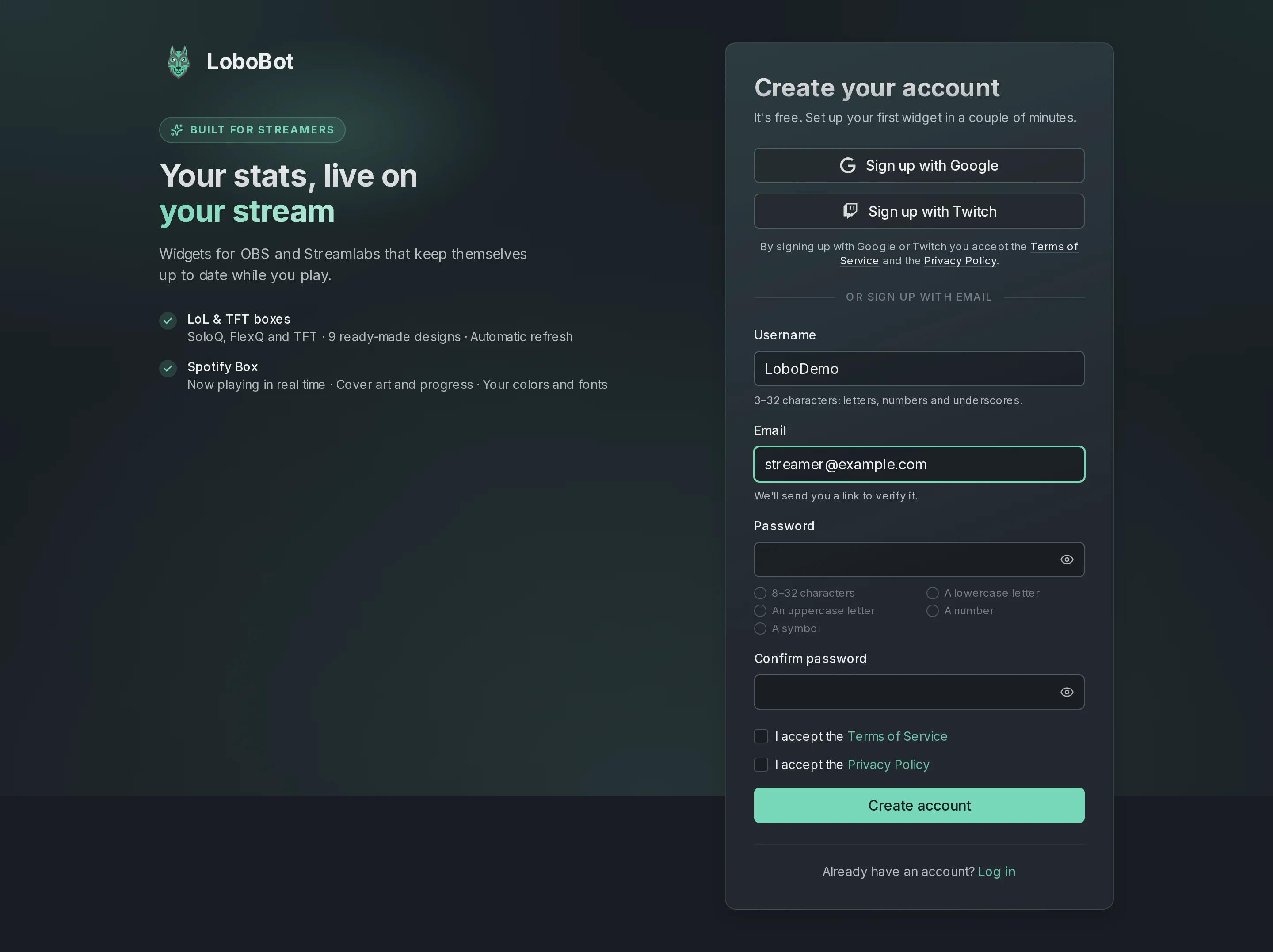
Check I accept the Terms of Service and I accept the Privacy Policy. You need both.
Click Create account.
LoboBot shows Check your email and sends you a verification link. Open it within 24 hours.
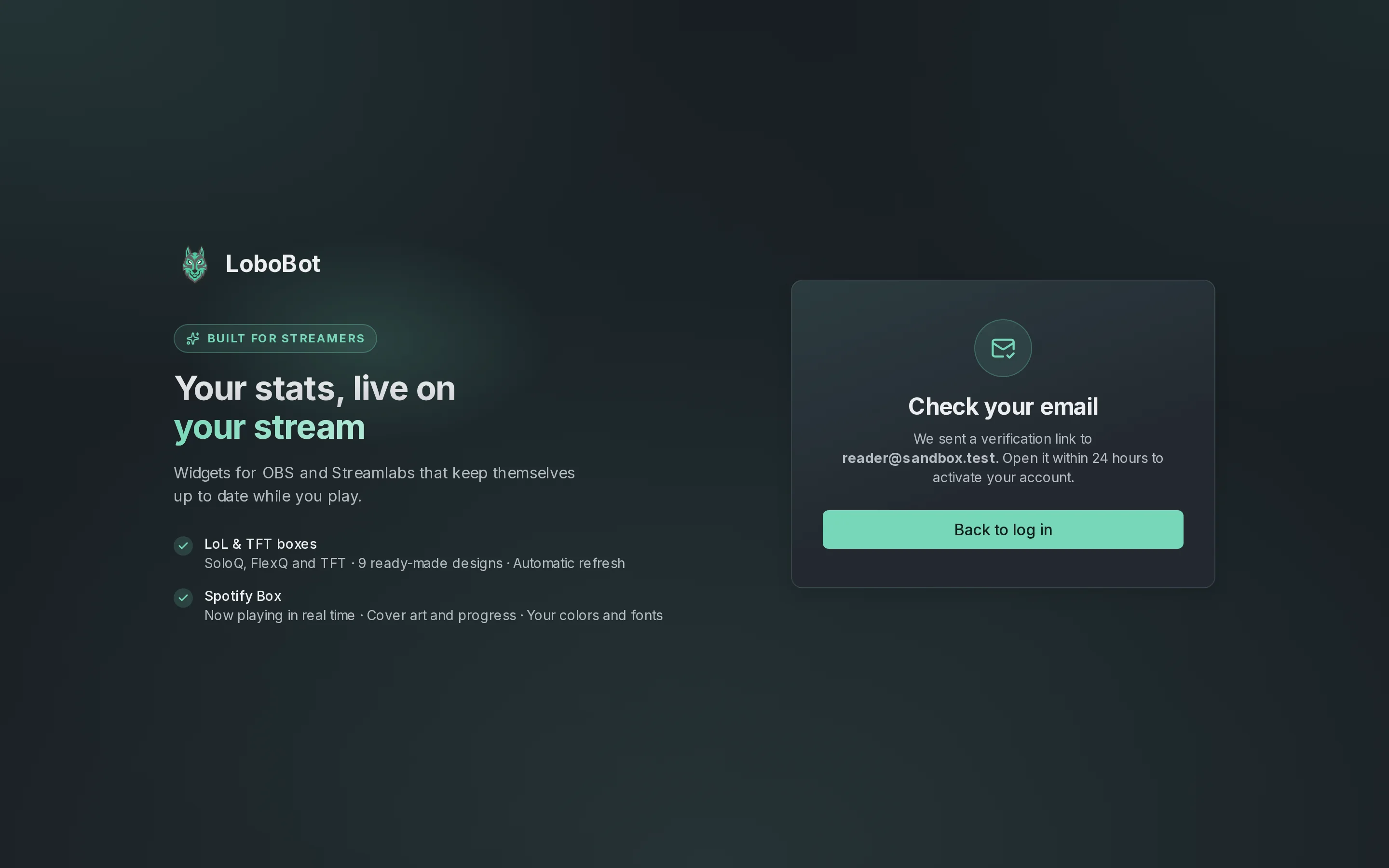
The link verifies your email, logs you in and takes you to your dashboard.
Until you open the link, you cannot log in with your email and password: the login page answers Verify your email before logging in.
If the link has expired, the page says This link is invalid or has expired. LoboBot cannot send a new one, so contact support.
Form rules
| Field | Rules |
|---|---|
| Username | 3–32 characters: letters, numbers and underscores. It is your display name; you log in with your email. |
| An address you can open. Each email can have one LoboBot account. | |
| Password | 8–32 characters, with a lowercase letter, an uppercase letter, a number and a symbol. No spaces. The form ticks off each rule as you type. |
| Confirm password | The same password again. |
Log in
On the login page, click Continue with Google or Continue with Twitch, or enter your Email and Password and click Log in.
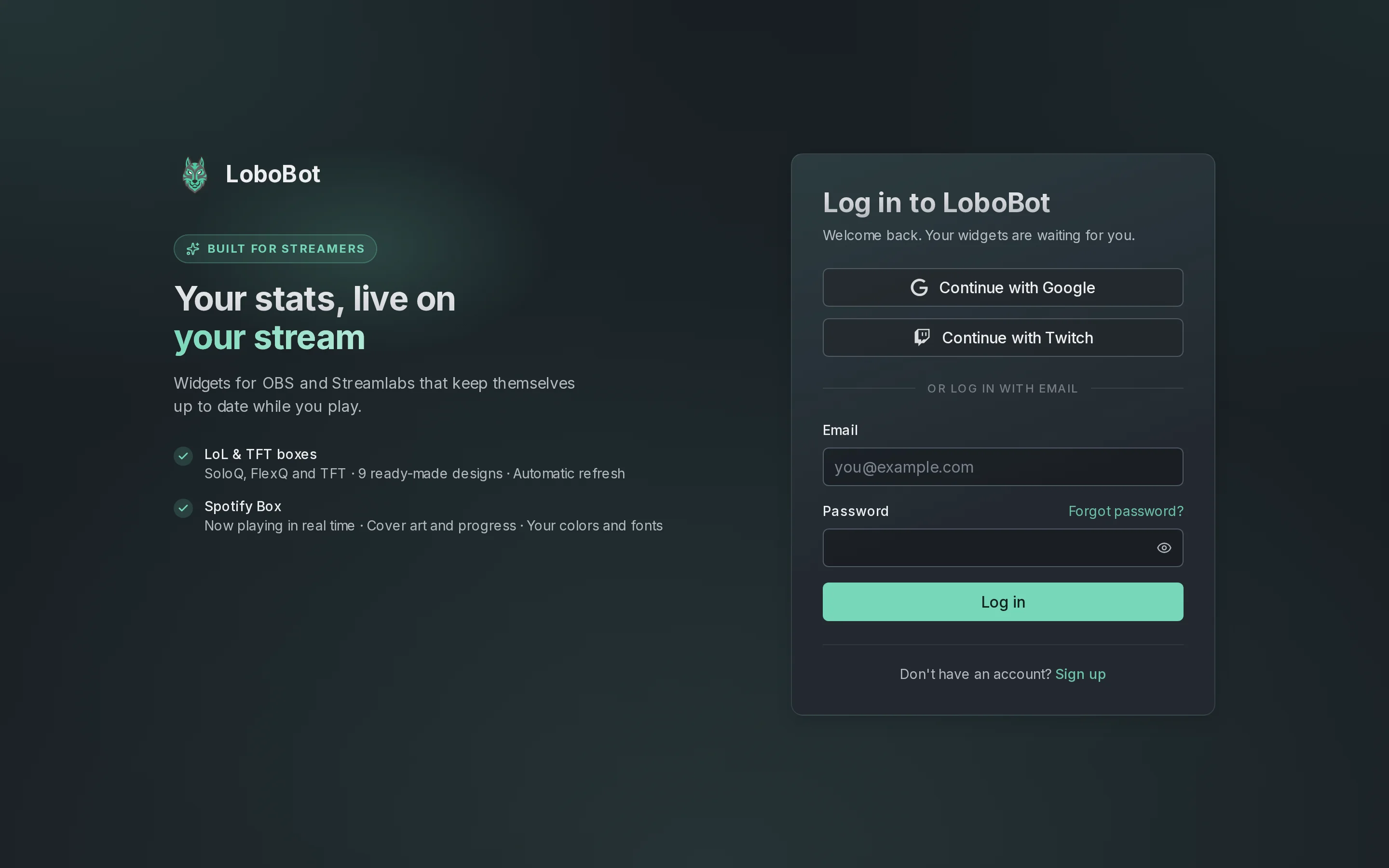
Reset a forgotten password
- On the login page, click Forgot password?.
- Enter your email and click Send reset link.
- Open the link LoboBot emails you within 24 hours.
- Enter a New password, repeat it in Confirm new password and click Reset password. LoboBot saves it and logs you in.
If the link has expired, clicking Reset password shows This link is invalid or has expired: start again from Forgot password? to get a new link. If the page says This reset link is incomplete, open the link from the email again or click Request a new link.
LoboBot shows the same message whether or not an account uses that email, and it only sends the link to accounts with a verified email. If nothing arrives, check the address and your spam folder, and make sure you verified your email when you signed up.
Next steps
- Link your Riot accounts to create League of Legends and Teamfight Tactics boxes.
- Spotify Box: show the song you are playing.
- Account settings: change your username, email or password.